
On this page · 8 sections
Quick answer
Restart, then open Task Manager (Windows) or Activity Monitor (Mac) to see what's hogging your computer. Turn off apps that open at startup, free up storage and install updates. Everything you need is already built in, so skip the cleaner apps.
Microsoft names the usual causes: low storage, too many startup apps, outdated software and aging hardware. Check CPU, memory and disk in Task Manager or Activity Monitor (watch Memory Pressure on a Mac), trim startup and login items, clear storage, update, and run the built-in malware scan. Skip paid optimizers and registry cleaners; Windows doesn't need them.
A slow computer doesn't mean you need a new one, or a "speed-up" app.
Microsoft says the usual causes are a nearly full drive, too many apps opening at startup, and outdated software. Windows and Mac already have free tools to fix all three.
Easy Mode: 6 fixes, easiest first
Takes 5 to 30 minutes. Free, and safe for your files. After each fix, use your computer for a bit. Stop when it feels fast again.
1. Restart it properly (2 minutes)
Many people only close the lid for weeks. A real restart clears out apps stuck in the background.
- Windows: Start > Power > Restart.
- Mac: Apple menu > Restart.
Save your work first, and close browser tabs you don't need. If updates are waiting, let them install.
2. Find out what's hogging it
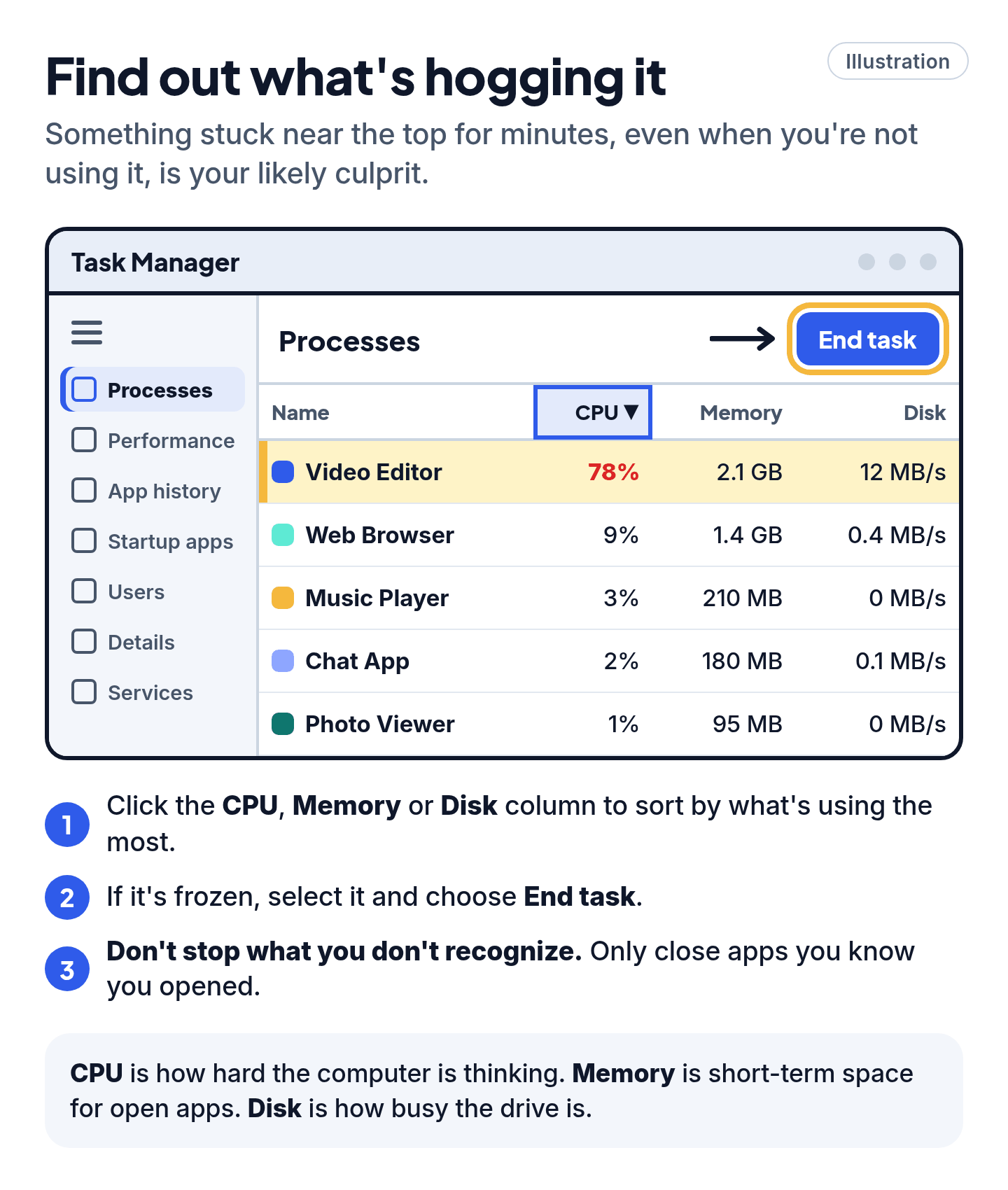
- Windows: press Ctrl + Shift + Esc to open Task Manager. On the Processes tab, click the CPU, Memory or Disk column to sort by what's using the most.
- Mac: open Activity Monitor (in Applications > Utilities). Click CPU or Memory.
What the columns mean: CPU is how hard the computer is thinking. Memory is short-term space for open apps. Disk is how busy the drive is. Something stuck near the top for minutes, even when you're not using it, is your likely culprit.
Found an app you don't need? Close it normally. If it's frozen:
- Windows: select it and choose End task.
- Mac: select it, click the X button at the top left of the window, then choose Quit. Use Force Quit only if Quit doesn't work, because you may lose unsaved work.
Cheat code
Don't stop what you don't recognize. An unfamiliar name may be part of Windows or macOS. Search the exact name on the maker's own website first, and only close apps you know you opened.
3. Stop apps from opening at startup
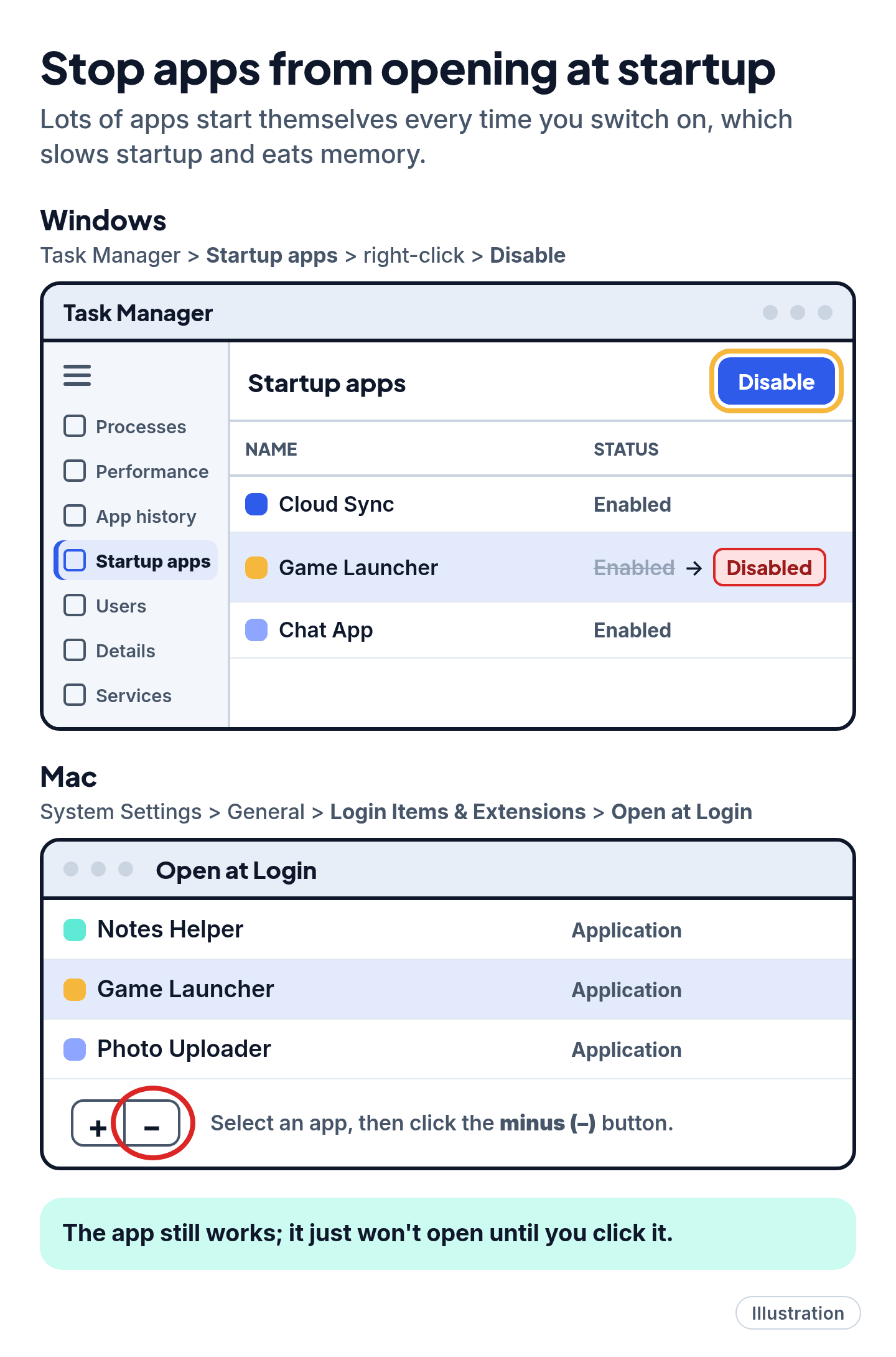
Lots of apps start themselves every time you switch on, which slows startup and eats memory.
- Windows: in Task Manager, open Startup apps. Right-click anything you don't need right away and choose Disable.
- Mac: Apple menu > System Settings > General > Login Items & Extensions. Under Open at Login, select an app and click the minus (–) button.
The app still works; it just won't open until you click it.
4. Free up storage space
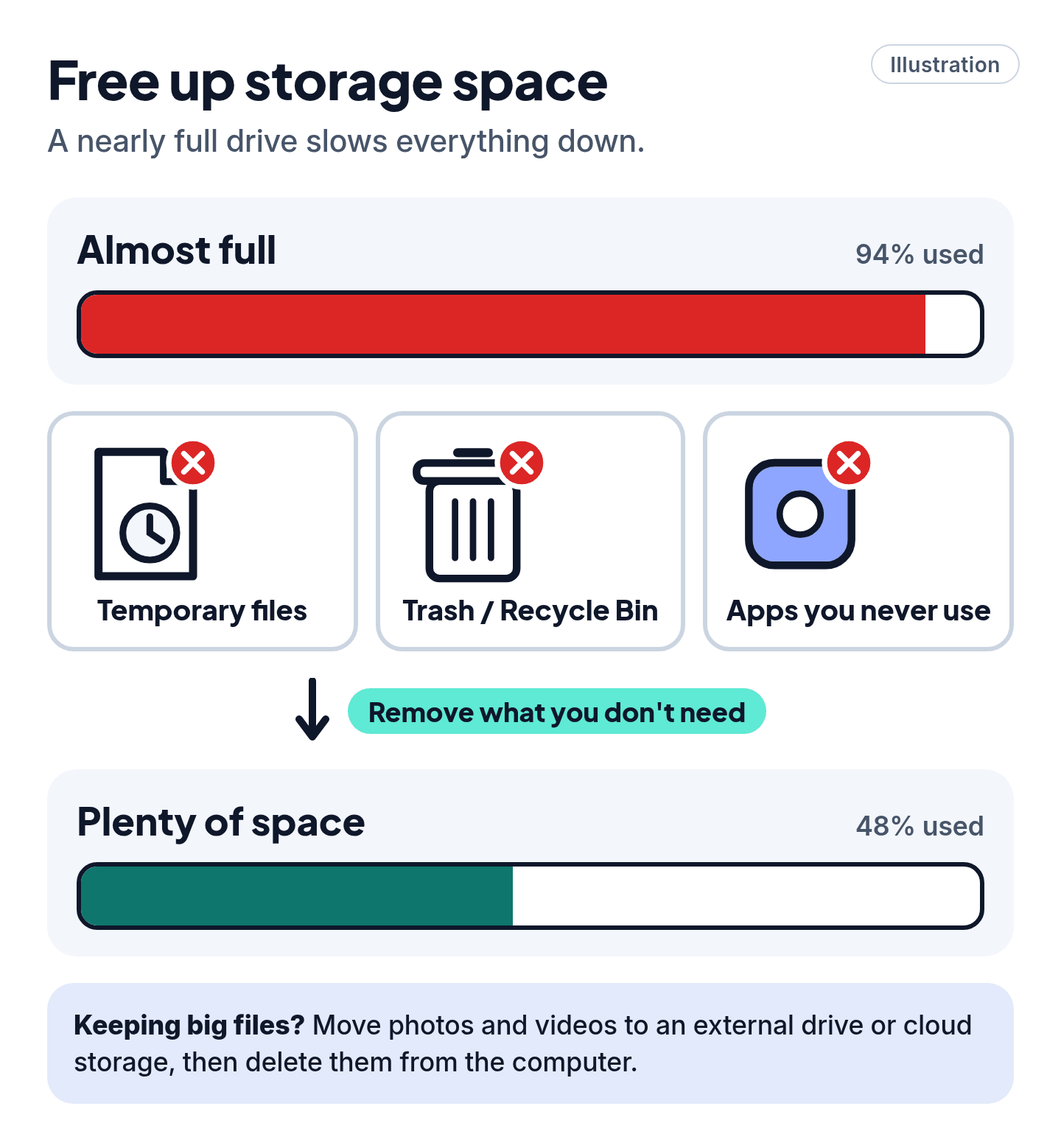
A nearly full drive slows everything down.
- Windows: Settings > System > Storage. Open Storage Sense and click Run Storage Sense now, or click Temporary files, choose what to remove, and click Remove files. Then empty the Recycle Bin: right-click it on the desktop and choose Empty Recycle Bin.
- Mac: Apple menu > System Settings > General > Storage, then pick the recommendations you want.
- Keeping big files? Move photos and videos to an external drive or cloud storage, then delete them from the computer.
- Uninstall apps you never use. Windows: Settings > Apps > Installed apps > … > Uninstall. Mac: use the app's own uninstaller if it has one; otherwise drag it from Applications to the Trash.
5. Install updates
Updates fix bugs that can slow you down.
- Windows: Settings > Windows Update > Check for updates. Also check Advanced options > Optional updates for driver updates.
- Mac: Apple menu > System Settings > General > Software Update. Apple suggests backing up your Mac first.
- Still on Windows 10? Microsoft ended regular support in October 2025. See Microsoft's Windows 10 Extended Security Updates page for your options.
6. Run a free virus scan
Malware can make a computer crawl. You don't need to buy anything to check.
- Windows: Settings > Privacy & security > Windows Security > Virus & threat protection > Quick scan. If it finds something, follow the steps it shows, then restart.
- Mac: macOS has built-in antivirus called XProtect. Apple says it updates itself and blocks known malware. Keep updates on, and only install apps from the App Store or developers you trust.
Cheat code
Need more memory, or a new computer? Try every free fix first. On a Mac, check Activity Monitor's Memory tab: Apple says a red Memory Pressure graph means your Mac needs more RAM. Microsoft notes that some older PCs won't get much faster with tweaks alone.
Skip the "cleaner" apps
Scam warning
- You don't need third-party cleaner and optimizer apps. Everything above is built in and free.
- Skip registry cleaners. Windows doesn't need them, and a bad registry edit can stop Windows from starting properly.
- "Your computer is infected!" pop-ups are fake. The FTC says real security warnings never ask you to call a number. Close the tab, and never let a caller onto your computer. See our guide to spotting scams.

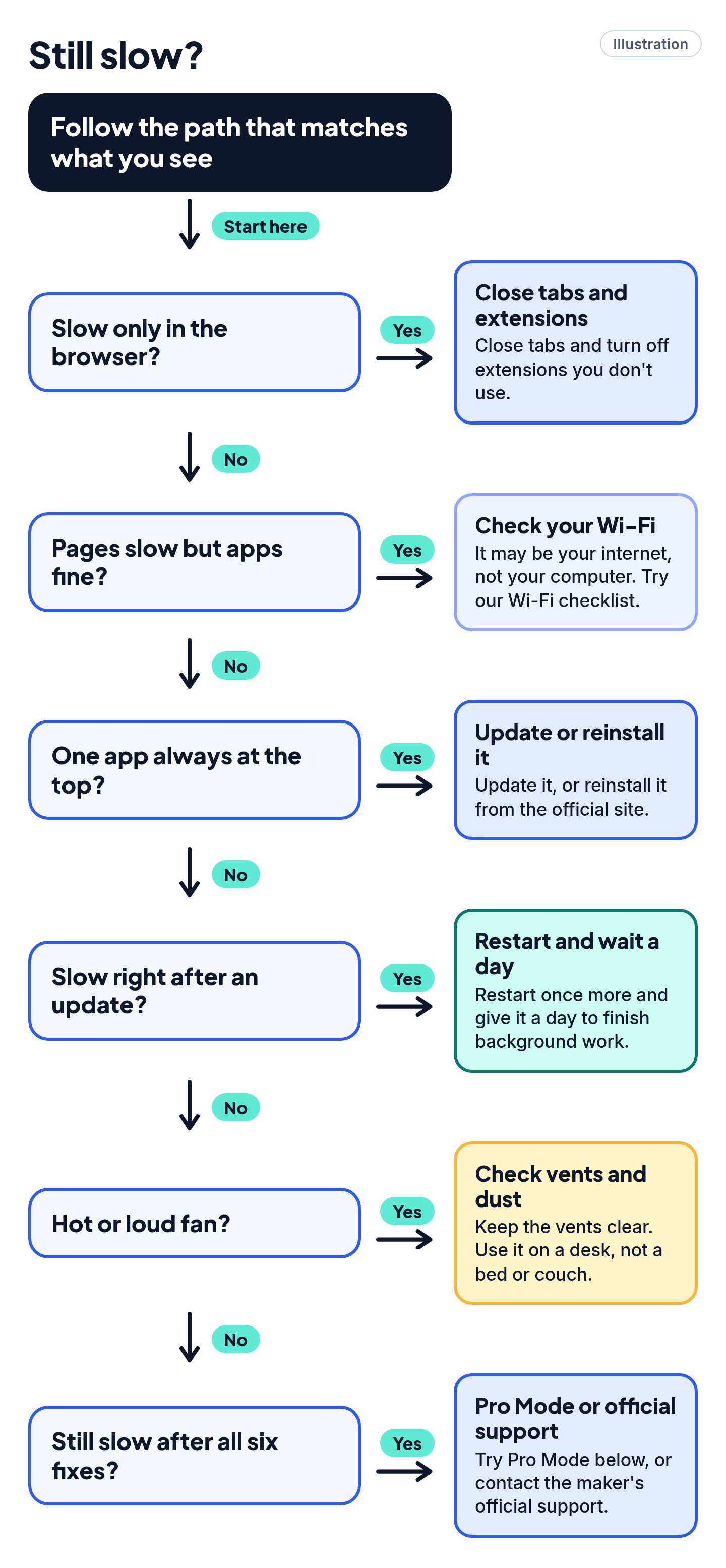
Still stuck? Follow the path
- Slow only in the browser? → Close tabs and turn off extensions you don't use.
- Pages slow but apps fine? → It may be your internet, not your computer. Try our Wi-Fi checklist.
- One app always at the top? → Update it, or reinstall it from the official site.
- Slow right after an update? → Restart once more and give it a day to finish background work.
- Hot or loud fan? → Keep the vents clear of dust. Use it on a desk, not a bed or couch.
- Still slow after all six fixes? → Try Pro Mode below, or contact the maker's official support.
Pro Mode
Pro Mode Pro Mode: deeper settings and diagnostics
Windows
- Visual effects: search for "Adjust the appearance and performance of Windows", then choose Adjust for best performance.
- Power mode: Settings > System > Power & battery > Power mode > Best performance. Microsoft notes this uses more battery and may run warmer.
- Background apps: Settings > Apps > Installed apps > … > Advanced options. Under Background app permissions, in the Let this app run in the background list, select Never (only some apps offer this).
- Notifications: Settings > System > Notifications. Turn off the ones you don't need.
- Optimize drives: use the built-in Defragment and Optimize Drives tool and click Optimize. Skip third-party defrag tools.
- Performance tab: in Task Manager, watch CPU, Memory and Disk. If Memory stays near 100%, close apps you don't need first. On a Mac, Apple's Memory Pressure graph is the better guide (see below).
- Disk Cleanup: search for "Disk Cleanup" to clear older system files.
Mac
- Memory Pressure: in Activity Monitor, click Memory and look at the graph at the bottom. Apple says green means RAM is used efficiently, yellow means the Mac might eventually need more, and red means it needs more. If it's yellow or red, quit apps you don't need first.
- Background activity: in Login Items & Extensions, review App Background Activity and turn off items you don't need.
- Disk problems: Apple suggests using Disk Utility to check for and try to fix disk issues.
- Safe mode test: on an Apple silicon Mac, shut down, then hold the power button until "Loading startup options" appears. Select your disk, hold Shift and click Continue in Safe Mode. On an Intel Mac, hold Shift as it starts. "Safe Boot" shows in the menu bar. If the Mac is fast in safe mode, something that opens at startup is the likely cause.
- Check requirements: System Settings > General > About shows your chip, which you can compare with an app's requirements.
You've got this
Fixes 2 to 4 help most often, without spending anything. Restart once a week and keep an eye on storage, and it should stay that way.
Sources
The 13 pages we checked
- Microsoft: Windows 10 Consumer Extended Security Updates (ESU)
- Microsoft Support: Tips to improve PC performance in Windows
- Apple Support: If your Mac runs slowly
- Apple Support: Change Login Items & Extensions settings on Mac
- Apple Support: Optimize storage space on your Mac
- Apple Support: Delete or uninstall apps on Mac
- Apple Support: Update macOS on Mac
- Apple Support: Quit a process in Activity Monitor
- Apple Support: View memory usage in Activity Monitor
- Apple Support: Check if your Mac needs more RAM
- Apple Support: Start up your Mac in safe mode
- Apple Platform Security: Protecting against malware in macOS
- FTC: How to spot, avoid and report tech support scams
More free guides are on the way.