
On this page · 8 sections
Quick answer
First make sure the microphone isn't switched off: a red light on an Echo, the mic switch on a Google speaker, or the Siri listening setting for HomePod in the Home app. Then unplug the speaker, wait, and plug it back in. Check its status in the Alexa, Google Home or Home app, and check that your Wi-Fi works on other devices. Factory reset only as the very last step.
Order: mic state, power cycle (Echo 30 s per Amazon's Wi-Fi page; HomePod 15 s or Restart HomePod in the Home app; Google 1 min per its Wi-Fi page), app status (HomePod No Response and alerts; Google Offline; Alexa Device Settings), Wi-Fi (distance, other devices, changed password: Alexa Change or remove a Wi-Fi network, Google Forget this network then Add Device, HomePod follows the iPhone's network). Reset last: Echo Action button 20 s keeps smart home connections; Microphone off + Volume down 20 s is a full factory reset.
When an Echo, a Google Nest speaker or a HomePod stops answering, Amazon's, Google's and Apple's help pages cover the same few checks: is the microphone on, does a restart help, what does the app say, and is the Wi-Fi working? Work down this list in order and stop when your speaker answers again. The factory reset is the last step for a reason: it wipes the speaker's setup.
These steps are for a speaker you own and set up yourself. If someone else in your home set it up, or it's in a rental or an office, ask them first, because the app may only be on their phone. Models and menus vary by country and software version; the steps below follow Amazon's, Google's and Apple's U.S. help pages. Speakers with a screen (Echo Show, Nest Hub) have some different steps, which we point out where the makers do.
Easy Mode: get your speaker listening again, quickest first
Every step here is free. You need the speaker, its own power adapter and the phone you set it up with.
1. Make sure the microphone isn't switched off
Every one of these speakers can be told to stop listening, and then it ignores you on purpose.
- Amazon Echo: a solid red light means someone pressed the microphone off button. Press it once more to turn the mic back on. Amazon says Alexa ignores voice requests until you do, though the Alexa app can still control the speaker.
- Google Nest Audio: the mic switch is on the back, next to the power cord.
- Google Nest Mini (2nd gen) and Google Home Mini (1st gen): the switch is on the side.
- Google Home Speaker (2026): the switch is on the bottom, next to the power cord. Google says the light ring stays solid orange while the mic is off.
- Original Google Home: press the mic mute button on the back.
- Google speakers tell you: Google says the assistant announces whether the mic is muted when you flip the switch.
- HomePod and HomePod mini: there's no mic switch. Apple says only the person who set up the HomePod can change its settings. If that's you, open the Home app on your iPhone or iPad, tap the HomePod, tap the Settings button, and look at how Siri listens. Apple's HomePod guide says Turn off stops "Siri" and "Hey Siri" requests, so pick Siri or Hey Siri instead. Also check that Touch and Hold for Siri is on if you use the top of the speaker.
Cheat code
Orange doesn't mean the same thing on every speaker. On a Google Home Speaker (2026), Nest Audio or Nest Mini (2nd gen), Google's reset page says the lights turn orange when you switch the mic off. On an Echo, Amazon's light guide says orange means setup mode, or that it's trying to get online. Red on an Echo is the mic-off light.
2. Unplug it, wait, and plug it back in
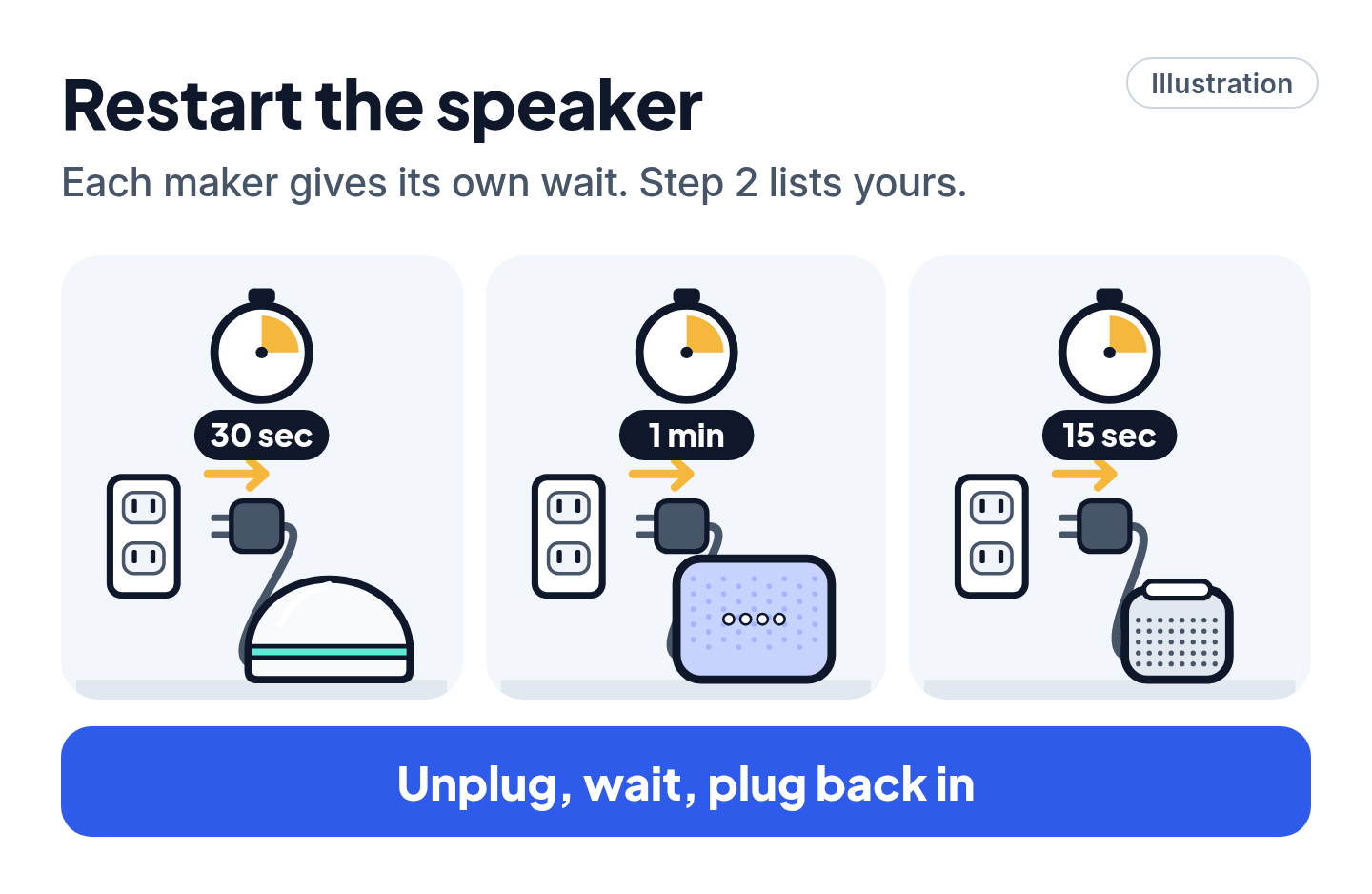
All three makers' help pages include a restart. Use the power adapter that came with the speaker; Amazon lists that first for an Echo that isn't responding.
- Amazon Echo: unplug it for 30 seconds, then plug it back in. That's the wait on Amazon's Wi-Fi help page, and it's what our smart home setup guide uses too. (Amazon's reset pages say 10 seconds; waiting 30 covers both.)
- Google Nest or Home speaker: unplug the power cord from the outlet and leave it out for one minute, as Google's Wi-Fi help page says, then plug it back in.
- HomePod: in the Home app, tap the HomePod, tap the Settings button, then tap Reset HomePod > Restart HomePod. This restarts it; it doesn't erase anything. No restart option? Unplug it, wait 15 seconds and plug it back in, as Apple's HomePod guide says.
- HomePod mini flashing orange? Apple's light guide says that means it's connected to a computer, or to a power adapter that isn't rated 20W. Plug it into a 20W adapter, not a computer.
3. Check what the app says about the speaker
Each maker's app shows the speaker's status.
- Home app (HomePod): "No Response" under the HomePod is the sign that it isn't responding. Apple says an alert with details shows in the Home app if the HomePod can't reach your Wi-Fi or your Apple Account; tap the HomePod to read it. A "Network Issue" or "No Internet" message means Apple says it can't talk to your Wi-Fi network or your active home hub (see "HomePod network checks" in Pro Mode).
- Google Home app: Google says a Nest product that shows as "Offline" in the app for a long time can't get back onto your Wi-Fi by itself, and you'll need to fix it at home. If you have more than one Nest product and they're all offline, Google says to restart your router and make sure you have the latest version of the Google Home app.
- Alexa app: go to Devices and select your speaker; its Device Settings is where Amazon has you change the Wi-Fi network (step 4). If the app can still control the speaker but Alexa won't hear you, go back to step 1: Amazon says that's how an Echo behaves while its mic is off.
4. Check your Wi-Fi
First, find out whether it's the speaker or your whole network: try the internet on your phone or another device.
- Nothing else can get online either? Restart your modem and router. Our Wi-Fi guide shows the right order in Fix 2. Then unplug the speaker for 30 seconds (Amazon's advice for an Echo). If your modem's lights say there's no internet, Apple suggests checking your provider's website or app for an outage.
- Too far from the router? Amazon says to keep an Echo within 30 feet (10 meters) of the router, away from microwaves and baby monitors. Google's Wi-Fi help, which is written for setup, puts a Google speaker 15 to 20 feet (4 to 6 meters) from the router. For a HomePod, open the Home app, tap the HomePod, tap the Settings button and scroll to Wi-Fi Network: Apple says two bars or fewer is weak, so move it closer to the router.
- Changed your Wi-Fi password or router? The speaker has to learn the new details:
- Echo: in the Alexa app, go to Devices > your speaker > Device Settings > Change or remove a Wi-Fi network. (On an Echo Show, Amazon says to change it on the device itself.)
- Google speaker: in the Google Home app, tap Home > All devices, touch and hold the speaker's tile, then tap Settings > Device information > Wi-Fi > Forget this network. Then go back to the Home tab and tap Add Device. Google says if that doesn't work, you'll need a factory reset (step 6).
- HomePod: Apple says HomePod joins the same Wi-Fi as your iPhone or iPad. Make sure your iPhone is on your home Wi-Fi.
- Echo only: two network names? If your router shows separate names for 2.4 GHz and 5 GHz, Amazon suggests moving the Echo to the other one. Don't do this for a HomePod: our smart home setup guide explains why Apple wants the same name on every band.
5. Help it hear you
If the speaker is online and the mic is on, but it still misses you:
- Echo: press the Action button to see if it responds at all. Amazon also says to move it away from walls, other speakers and noise, then ask "Did you hear me?"
- Google speaker: say "Hey Google" and watch the top. Google says the LED dots should spin or blink (the Google Home Speaker's light ring glows solid white instead). If it often misses "Hey Google," Google says you can adjust how sensitive the speaker is to it.
- HomePod: if the top shows multicolored light, Siri is listening, according to Apple's light guide. A white light flashing on and off means unplug it for 15 seconds (step 2).
6. Last resort: factory reset
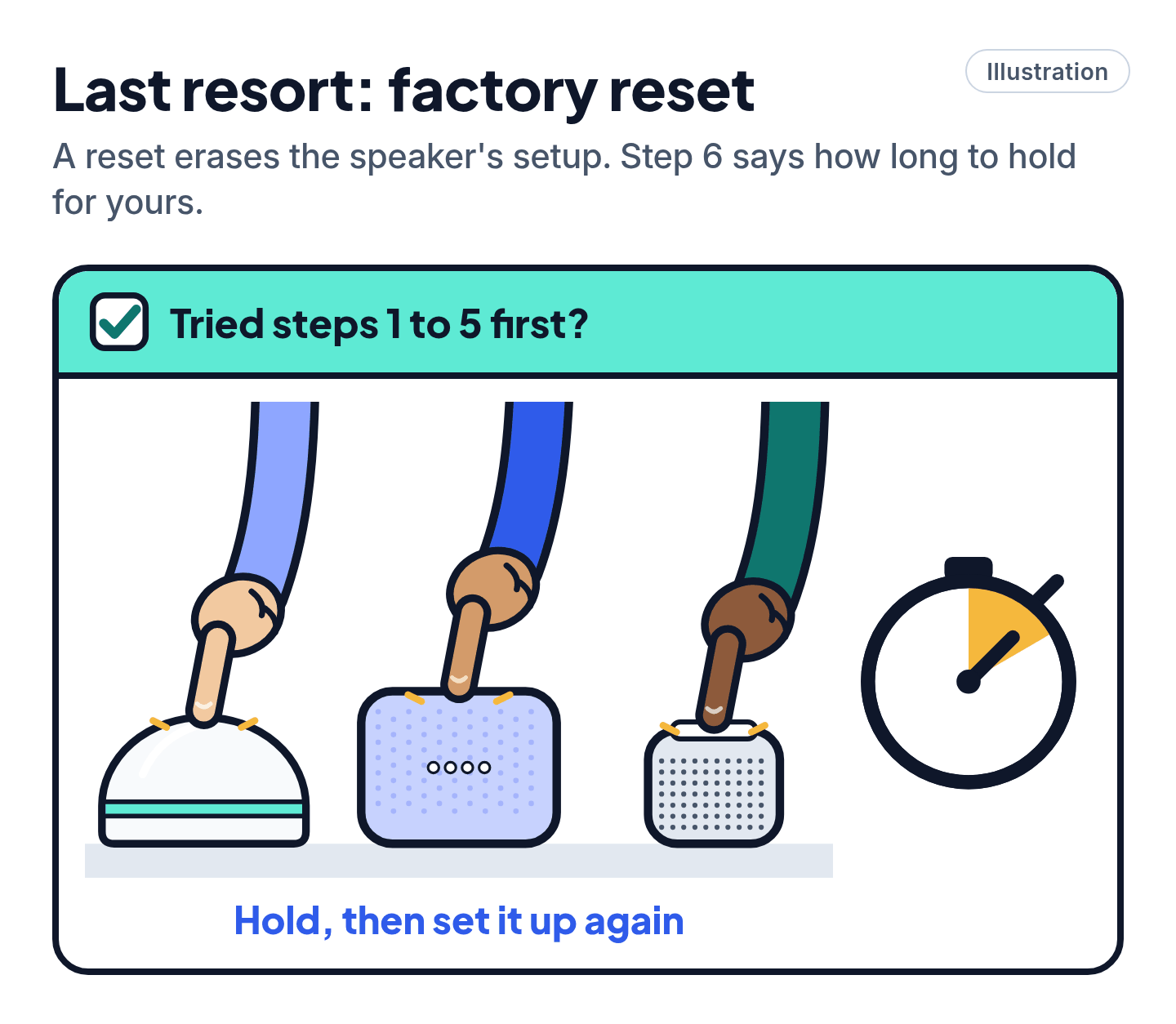
A factory reset erases the speaker's setup, so do it only after steps 1 to 5. Then you'll set the speaker up again from scratch, as if it were new. Our smart home setup guide helps if setup gets stuck.
- Echo (3rd and 4th gen) and Echo Dot (2nd to 5th gen): try the gentler reset first. Hold the Action button for 20 seconds; Amazon says this keeps your smart home connections. Still stuck? Hold Microphone off and Volume down together for 20 seconds. Amazon says that full reset erases your personal information and any device and smart home connections. Either way, the light ring turns off and on, and the Echo goes into setup mode. Other Echo models: search Amazon's help site for "Reset Your Echo" plus your model.
- Google Home Speaker (2026), Nest Audio and Nest Mini (2nd gen): switch the mic off (the lights turn orange). Press and hold the middle of the top. Google says the reset starts after 5 seconds; keep holding for roughly 10 more seconds, until you hear a sound. Google says you can't factory reset with your voice or the Google Home app, and the reset can't be undone. Other Google speakers (Home Max, Home Mini 1st gen, the original Google Home) each have their own button; see Google's reset page.
- HomePod: Apple says to try the Home app first. Tap the HomePod, tap the Settings button, then Reset HomePod > Remove Accessory. If that doesn't work: unplug it, wait at least 10 seconds, plug it back in, wait 10 seconds, then touch and hold the top. The white spinning light turns red and Siri says it's about to reset; lift your finger after three beeps. A stereo pair must be ungrouped first.
Get help only from the official support site
Scam warning
- Type the help site in yourself: Amazon's help pages on amazon.com for Echo, support.google.com/googlenest for Google speakers, or support.apple.com for HomePod. Our read: don't trust a "smart speaker support" number from a search ad or a pop-up.
- Our read: no real support agent needs your Amazon, Google or Apple Account password, a remote-control app on your computer, or payment in gift cards to fix a speaker. Our scam guide covers the warning signs.
Still stuck? Find your situation
| What you see | What it means | What to do |
|---|---|---|
| Solid red light on an Echo | The microphone is off | Press the mic button (step 1) |
| Solid orange ring on a Google Home Speaker | The microphone is off | Flip the mic switch (step 1) |
| Orange light on an Echo | Setup mode, or trying to get online | Steps 2 and 4 |
| "No Response" under HomePod in the Home app | It can't be reached | Steps 2 to 4 |
| "Offline" in the Google Home app | It can't get onto your Wi-Fi | Steps 2 and 4 |
| Every device in the house is offline | Your router or internet service | Restart the router (step 4) |
| Still not responding after steps 1 to 5 | A reset is the last step left | Factory reset (step 6) |
Still nothing after a reset? Use the maker's own support site from the scam warning above. Apple says a HomePod that keeps flashing white after a reset may need service.
Pro Mode
Pro Mode Pro Mode: restore a HomePod mini, network checks and deregistering
Restore a HomePod mini from a computer. If you can't reset a HomePod mini, Apple says you can restore it, which also updates its software. Connect it to a Mac or PC with its own USB-C cable. On a Mac, use Finder; on a PC, use the Apple Devices app or iTunes. Select the HomePod and click Restore HomePod.
HomePod network checks. Apple's "Network Issue" page lists what can block a HomePod: a HomePod on a different network from your active home hub, guest networks that block peer-to-peer traffic, more than one DHCP server, and a wrong custom DNS server. If you don't manage your network, Apple says to work with your internet provider or network administrator.
Google hotspot test. To see whether the problem is the speaker or your router, Google suggests setting up a temporary hotspot on your phone and connecting the speaker to it. Google says hotspots aren't fully supported for Nest and Home devices, and your carrier may charge for hotspot data.
Done with an Echo for good? If a reset doesn't help, or you're done using the speaker, Amazon says you can deregister it from your Amazon account. That erases all of its settings.
You've got this
Check the mic, restart the speaker, read what the app says, then check your Wi-Fi. Our read: most speakers come back by then. Keep the factory reset as your very last step.
Sources
The 18 pages we checked
- Amazon Help: Turn Your Echo Device's Microphones On or Off (Amazon's help site)
- Amazon Help: Alexa Doesn't Understand or Respond to Your Request (Amazon's help site)
- Amazon Help: What Do the Lights on Your Echo Speaker Mean? (Amazon's help site)
- Amazon Help: Echo Device Is Having Wi-Fi Issues (Amazon's help site)
- Amazon Help: Update the Wi-Fi Settings for Your Echo Device (Amazon's help site)
- Amazon Help: Reset Your Echo (3rd or 4th Generation) (Amazon's help site)
- Amazon Help: Reset Your Echo Dot (2nd, 3rd, 4th, or 5th Generations) (Amazon's help site)
- Google Home and Nest Help: Fix issues with "Hey Google" on a Google smart speaker or display
- Google Home and Nest Help: Factory reset your Google smart speaker or display
- Google Home and Nest Help: Fix Wi-Fi connection issues for your Google smart speaker or display
- Google Home and Nest Help: Troubleshoot Wi-Fi and connection issues for Nest products
- Google Home and Nest Help: How to connect your Nest or Home devices to a new Wi-Fi network
- Apple Support: If HomePod or HomePod mini isn't responding
- Apple Support: Reset HomePod or HomePod mini
- Apple Support: Identify status lights on HomePod and HomePod mini
- Apple Support: If HomePod has a "Network Issue" or "No Internet"
- HomePod User Guide: Restart HomePod
- HomePod User Guide: Change HomePod settings
More free guides are on the way.