
On this page · 8 sections
Quick answer
Back up first and make sure your new device has everything. Then sign out of your Apple Account (iPhone, Mac), or remove your Google and Samsung accounts (Android), so the device isn't locked to you. Erase it from Settings: Erase All Content and Settings on iPhone and newer Macs, Erase all data or Factory data reset on Android, Reset this PC with Remove everything on Windows. Finally, take out your SIM and memory card and remove the device from your accounts online.
iPhone: iOS 26+ Settings > [your name] > Sign Out (Erase this [Device] or Sign Out But Don't Erase), then General > Transfer or Reset [device] > Erase All Content and Settings; erase the eSIM too when selling. Pixel: Settings > Passwords & accounts > Remove account, then System > Reset options > Erase all data. Samsung: remove Samsung and Google accounts in Accounts and backup > Manage accounts, reset only from Settings (other resets trigger Google Device Protection). Windows: Remove everything + Clean data; have the BitLocker key. Mac: Erase Assistant on macOS 12+ with Apple silicon or T2; otherwise sign out of iCloud and erase from macOS Recovery.
Your old phone or computer is full of you: photos, messages, saved passwords and accounts that are still signed in. Before it goes to a buyer, a trade-in program or a relative, wipe it properly. Done in the right order, the next owner gets a clean device, and they aren't stuck with one that's still locked to your account.
These steps are for a device you own. A work or school device belongs to your employer or school, so ask their IT team before you erase or hand it in. Menus vary by model, country and software version; the steps below follow Apple's, Google's, Samsung's and Microsoft's U.S. help pages, and we label each path with the software version it's for.
Easy Mode: wipe it in the right order
Do these steps in order. Erasing comes after the sign-outs, not before.
1. Back up, and keep the old device until you're sure
Erasing removes everything on the device, so make sure everything you want is on your new device or in a backup first. Our guide to moving your photos, messages and files walks through it for iPhone, Android, Windows and Mac, and it suggests keeping the old device for a week before you wipe it.
While the old device still works, also write down or check:
- Android: your Google Account email and password, and the phone's screen lock (PIN, pattern or password). Google says a reset from Settings asks for your screen lock, and that after a reset, a protected phone can't be used at all unless you give its screen lock or Google Account details during setup. If you recently reset your Google Account password, Google says to wait 24 hours before you reset the phone.
- Samsung: your Samsung account password too. Samsung says the reset asks for it.
- Windows: your BitLocker recovery key, if the PC is encrypted. Microsoft says you'll need it.
2. Sign out, so the device isn't locked to you
Apple and Google both have a lock that keeps a device tied to its owner's account: Activation Lock on Apple devices, and Google's device protection on Android, which Samsung's pages call Google Device Protection or Google Factory Reset Protection (FRP). Sign out the right way and the next owner can set it up.
iPhone (iOS 26 or later): open Settings, tap your name, scroll down and tap Sign Out. Apple then offers Erase this [Device] or Sign Out But Don't Erase. If you choose Sign Out But Don't Erase, do the erase in step 3. If you're asked which account to sign out of, Apple says to tap Sign out of iCloud and Store.
iPhone (iOS 18 or earlier): open Settings, tap your name, scroll down and tap Sign Out, then enter your Apple Account password and tap Turn Off.
Also on iPhone: unpair your Apple Watch first if you have one. Switching to a non-Apple phone? Apple says to deregister iMessage. Getting a new phone number? Apple says to add another trusted phone number to your Apple Account so you don't lose access. If you ever do get locked out, our account recovery guide walks through it.
Google Pixel (Android): open Settings > Passwords & accounts. Under "Accounts," tap your Google Account, then tap Remove account and confirm. Google says removing your Google Account turns off device protection. Its accounts page adds that taking an account off the phone also deletes that account's email, contacts and settings from the phone. Our read: do this only after your new phone has finished restoring.
Samsung Galaxy (Android): you'll need an internet connection. Open Settings > Accounts and backup > Manage accounts.
- Tap Samsung account > Remove account, confirm, tap Sign out, then enter your password and tap OK.
- Then tap your Google account and remove it the same way. Samsung says device protection may ask you to verify it's you.
Mac (macOS 12 Monterey or later, with Apple silicon or the Apple T2 Security Chip): skip ahead to step 3, which has paths for Monterey 12 and for Ventura 13 or later. Apple's Mac selling checklist says if you can use Erase All Content and Settings, you don't need its other steps.
Other Macs: turn off Find My, sign out of iCloud, then sign out of iMessage.
- Find My, macOS 15 or later: System Settings > your name > iCloud > next to Saved to iCloud click See All > Find My Mac > Turn Off.
- Find My, macOS 13 Ventura or 14 Sonoma: System Settings > your name > iCloud > Find My Mac > Turn Off.
- Sign out, macOS Ventura 13 or later: System Settings > your name, scroll down and click Sign Out.
- Sign out, macOS Monterey 12, Big Sur 11 or Catalina 10.15: System Preferences > Apple ID, select Overview in the sidebar, then click Sign Out.
- iMessage: open Messages, choose Messages > Settings (or Preferences) from the menu bar, click iMessage, then click Sign Out.
Windows 11 and Windows 10: Microsoft's checklist has no sign-out step before the reset. You'll remove the PC from your Microsoft account in step 4.
Cheat code
Reset from Settings, not from buttons. Samsung says a reset from Settings doesn't trigger Google Device Protection, and Google tells trade-in customers to use the reset in the Settings app. Google Store's trade-in page adds a quick check: after a full reset, the phone shouldn't ask for a password. If it does, the reset didn't finish.
3. Erase it
iPhone: open Settings > General > Transfer or Reset [device] > Erase All Content and Settings, enter your passcode if asked, then tap Erase [device]. Apple says erasing turns off Find My and Activation Lock, and doesn't delete anything stored in iCloud. Selling an iPhone with an eSIM? When asked, Apple says to choose the option that erases the eSIM profile along with the phone.
Google Pixel (Android): charge the phone to at least 70% and connect it to Wi-Fi or your mobile network; Google says a reset can take up to an hour. Open Settings > System > Reset options > Erase all data (factory reset) > Erase all data, enter your PIN, then tap Erase all data again.
Samsung Galaxy (Android): encrypted your microSD card? Decrypt it first (in Settings, search "Decrypt SD card"), or Samsung says the phone won't be able to read it. Then open Settings > General management > Reset > Factory data reset > Reset > Delete all.
Windows 11: open Settings > System > Recovery, and under Recovery options select Reset PC.
Windows 10: open Settings > Update & Security > Recovery, and under Reset this PC select Get started.
On both Windows versions:
- Choose Remove everything. Microsoft says it's the option to use when you're giving away or selling a PC.
- Turn on Clean data, Microsoft's option that cleans the drive. Microsoft recommends it if you'll donate, recycle or sell the PC; it takes longer, but it makes your old files harder to recover.
- Don't panic if the screen goes black. Microsoft says it can stay black for more than 15 minutes, and restarting the PC yourself could make the reset fail.
Mac (macOS 13 Ventura or later, Apple silicon or T2 chip): open System Settings > General > Transfer or Reset > Erase All Content and Settings. Enter your administrator details and follow Erase Assistant. Apple says Erase Assistant signs you out of Apple services such as iCloud and turns off Find My and Activation Lock, and the Mac shows "Hello" when it's done.
Mac (macOS Monterey 12, Apple silicon or T2 chip): from the Apple menu, open System Preferences, then choose Erase All Content and Settings from the System Preferences menu in the menu bar. That's the Monterey path in Apple's Erase your Mac and reset it to factory settings, the article the Mac selling checklist (step 2) links to for this feature.
Other Macs: after signing out (step 2), start up from macOS Recovery. Erase the Mac with Disk Utility, then reinstall macOS. When the setup assistant appears, press Command-Q to shut down, so the buyer sets it up from scratch.
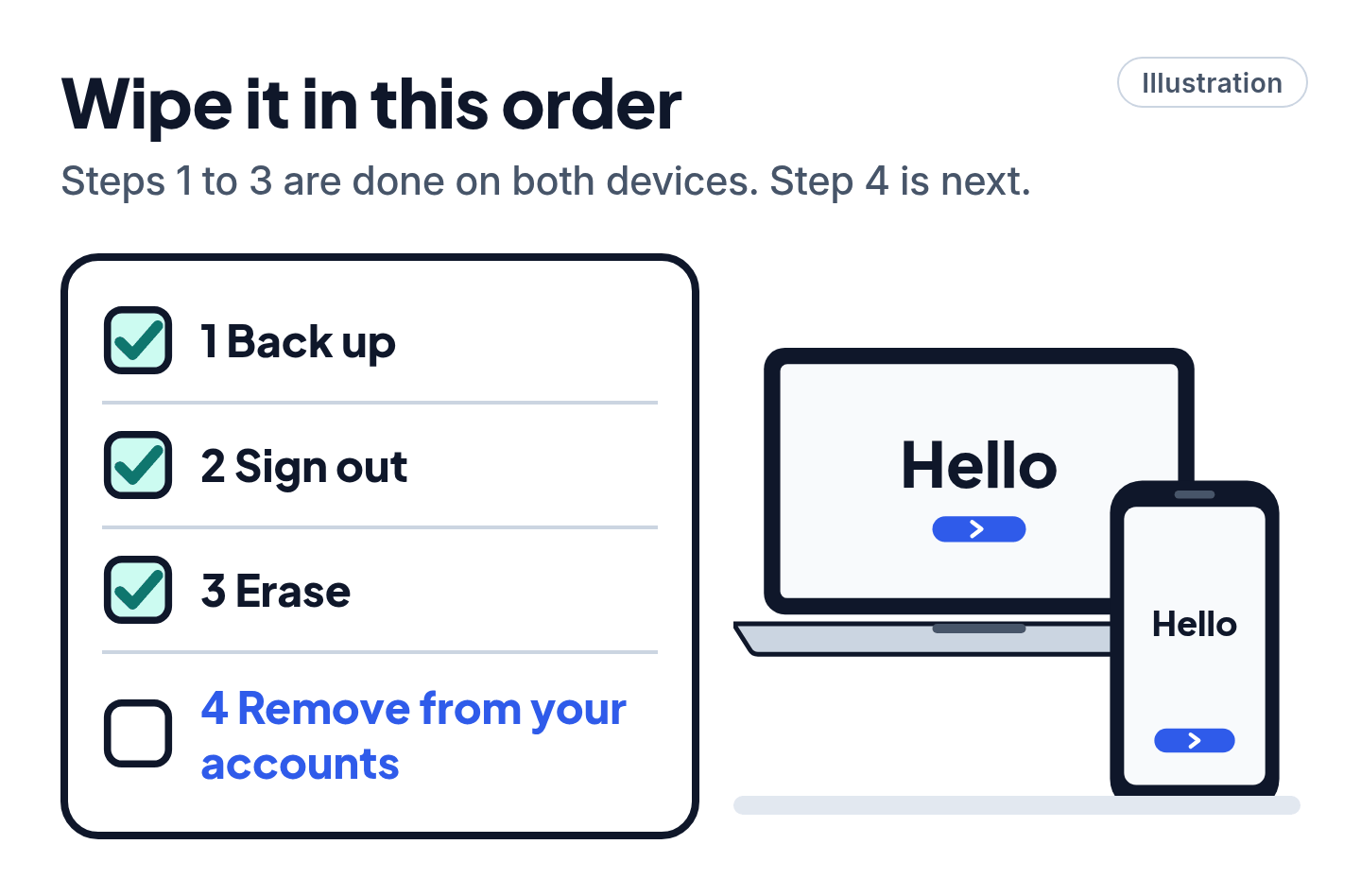
4. Remove it from your accounts online
After the erase, check that the old device is gone from your account lists.
- Apple: on your iPhone, open Settings > your name and scroll to your devices (on a Mac: System Settings > your name). Or sign in at account.apple.com and select Devices. Pick the old device and choose Remove from Account.
- Google: Google says to sign out on devices you no longer own. Go to your Google Account (myaccount.google.com) and tap Security & sign-in. Under "Your devices," tap Manage all devices, tap the old device, then tap Sign out.
- Samsung: Samsung says removing the account from the phone isn't enough on its own; the phone also has to be unregistered from your Samsung account. Samsung's support site (samsung.com/us/support) can help with that.
- Microsoft: sign in at account.microsoft.com/devices and find the old PC. Choose the option to remove it, tick I'm ready to remove this device and confirm. Microsoft says you can also unlink it so it doesn't count toward your Microsoft Store device limit.
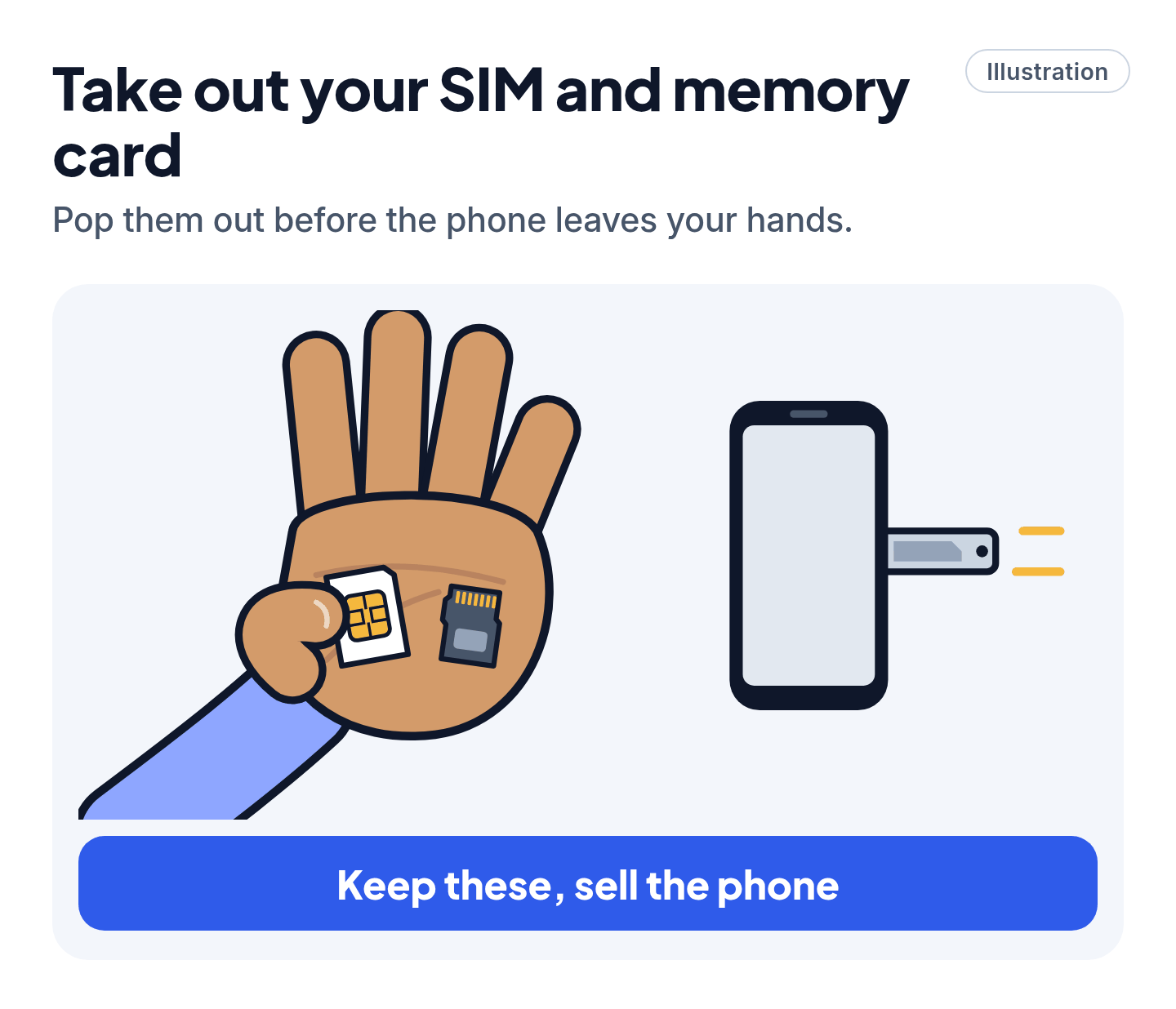
5. Take out your SIM and memory card
- Physical SIM: take it out before the device leaves your hands. Apple's trade-in page says to remove it.
- eSIM: if you're selling an iPhone, erase the eSIM when the erase step asks (step 3). For a phone with an eSIM that you're trading in, Apple's trade-in page says to contact your wireless carrier to suspend service. Our read: if your number already works on your new phone, you're set; if it doesn't, call or chat with your carrier through its website before you erase the old phone.
- microSD card: pop it out. Google's Find Hub page warns that its remote erase may not delete SD cards. Our read: take the card with you either way.
Watch out for buyer scams
Scam warning
- Our read: never give a buyer your Apple Account, Google or Samsung password, or a sign-in code from a text, "so they can unlock it." If the device is erased the right way, they don't need anything from you.
- Our read: only use the official help sites for help unlocking or resetting: support.apple.com, support.google.com, samsung.com/us/support and support.microsoft.com. Our scam guide covers the warning signs.
Still stuck? Find your situation
| What you see | What it means | What to do |
|---|---|---|
| The reset asks for a password you don't remember | Your account is still on the device | Recover your password with our account recovery guide, then sign out (step 2) |
| Android asks for a Google Account after the reset | Device protection is still on | Sign in with the account that was on it, then remove it and reset from Settings |
| The new owner says an iPhone or Mac you sold or gave away is locked to your Apple Account | Activation Lock is still on | Go to icloud.com/find, select the device, erase it, then select Remove This Device, as Apple's iCloud guide says |
| Windows screen black for a long time | The reset is still working | Wait; don't restart it yourself |
| No "Erase All Content and Settings" on a Mac | Older Mac or macOS | Use macOS Recovery (step 3) |
Pro Mode
Pro Mode Pro Mode: Windows reset options, Mac NVRAM and remote erase
Windows: Cloud download or Local reinstall. During Reset this PC, Microsoft lets you pick how Windows comes back. Cloud download gets a fresh copy with the latest updates; Local reinstall works from what's already on the PC, which is quicker on a slow connection. Microsoft also notes that Clean data is built for consumers and doesn't meet government or industry data-erasure standards.
Intel Macs: reset NVRAM. After reinstalling macOS on an Intel-based Mac, Apple suggests resetting NVRAM to clear user settings from memory. Press Command-Q at the setup assistant again afterward.
Already handed it over without erasing? For an iPhone, Apple says to contact the new owner and ask them to erase it with the steps above; if the phone was lost or stolen, Apple says to erase it in Find Devices on iCloud.com. For Android, Google's Find Hub page has steps to erase a device you can't find. Our read: change your account passwords too.
Selling a Windows 10 PC? Microsoft's reset page says Windows 10 support ended on Oct 14, 2025. Since then, Microsoft no longer gives it free software updates through Windows Update, technical help or security fixes. PCs enrolled in Microsoft's Extended Security Updates program still get security updates through Oct 12, 2027. Our Windows 10 guide covers both.
You've got this
Back up, sign out, erase, remove it from your accounts, and pull the SIM and memory card. Do it in that order and your old device goes to its next owner clean, and it's no longer tied to your accounts.
Sources
The 21 pages we checked
- Apple Support: What to do before you sell, give away, or trade in your iPhone or iPad
- iPhone User Guide: Sell, give away, or trade in your iPhone
- Apple Support: Prepare your iPhone, Apple Watch, or Android device for trade in
- Apple Support: What to do before you sell, give away, trade in, or recycle your Mac
- Apple Support: Erase your Mac and reset it to factory settings
- Mac User Guide: Erase your Mac
- iCloud User Guide: Turn off Find My on your devices and items
- Apple Support: Review devices signed in to your Apple Account
- iCloud User Guide: Remove a device from Find Devices on iCloud.com
- Pixel Phone Help: How to factory reset your Google Pixel phone
- Pixel Phone Help: Add or remove Google & other accounts on your Pixel phone or Pixel Tablet
- Pixel Phone Help: Help prevent others from using your device without permission
- Google Store Help: Ship your trade-in device
- Android Help: Find, secure, or erase a lost Android device
- Google Account Help: See devices with account access
- Samsung Support: Perform a factory reset on your Galaxy phone or tablet
- Samsung Support: Remove accounts from your Galaxy phone or tablet
- Samsung Support: Google Device Protection on your Galaxy phone or tablet
- Microsoft Support: Reset your PC
- Microsoft Support: Before you recycle, sell, or gift your Xbox or Windows PC
- Microsoft: Windows 10 Consumer Extended Security Updates (ESU)
More free guides are on the way.